
Below is good for background on HyperSpin and the different components however; we have updated a full how to tutorial here ->>
Setup HyperSpin MAME and Hyperlaunch – The Full Guide
HyperSpin Structure
Now that you have read through the “Installing the frontend and emulator” section, you need some understanding of how all the different files pull together so you have all your games, box/wheel artwork, etc working together.
File Naming
The “ROMs”/games, artwork, etc are preferred to be named according the “No intro” naming format. You really do not have to know much more than that other than HyperSpin is setup up out the box to look for this naming type.
Example
- No-Intro – “1943 – The Battle of Midway (USA)”
- Goodtools – “1943 – The Battle of Midway (U) [!]”
- TOSEC – “1943 – The Battle of Midway (1988-10)(Capcom)(US)”
There are tools we will discuss on how to mass convert your files to no intro later in the post.
HyperSpin\Databases
- This is where your .XML files for each system are stored
- Essentially the list of games you want to show up in the “Wheel” for a specific system
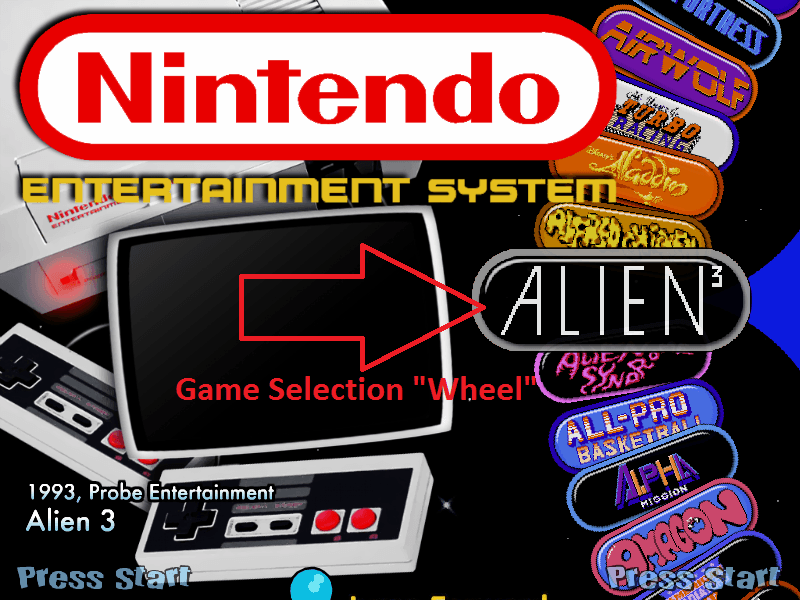
- Essentially the list of games you want to show up in the “Wheel” for a specific system
HyperList
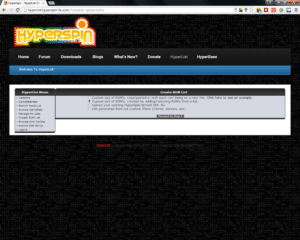
- On HyperSpin home page click “hyperlist” on the far right. Log in.
- On the left under Hyperlist menu, click “Create ROM List”.

- Then the 2nd option “Custom List of ROM’s, created by adding/removing ROM’s from a list.” Give it a name then proceed to step 3.
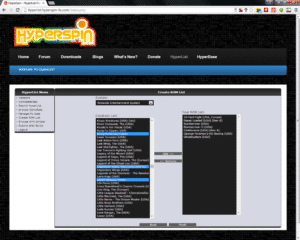
- Select your system, then highlight the games (using Ctrl) that you want to show up and press “Add”. It will create the new XML.
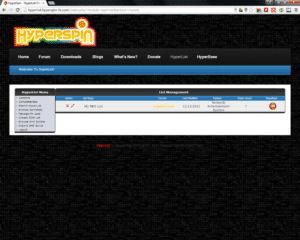
- Click “Manage My Lists” and download the XML.


- In the Emulators folder you will want a folder named for each emulator.
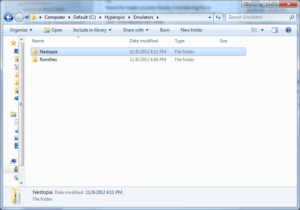
- The emulator/console files will be the contents based on the folder

- In the main Emulators folder you will also create Romfiles folder to hold games
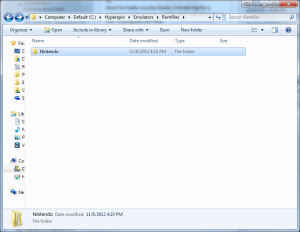


Essentially you will need to configure each emulator outside of HyperSpin first. Then incorporate each one how we did with Nestopia (NES) above. If it does not work properly outside of HyperSpin, it will not work launch from within HyperSpin.
Here are the default emulators for each system:
- Atari 5200-messpp.exe
- Atari Lynx-handy.exe
- Daphne-daphne.exe
- Future Pinball-Future Pinball.exe
- Gameboy Advance-visualboyadvance.exe
- Gameboy-visualboyadvance.exe
- Gameboy Color-visualboyadvance.exe
- MAME-mame.exe
- Neo Geo-mame.exe
- Neo Geo Pocket Color-NeoPop-Win32.exe
- Nintendo 64-project64.exe
- Nintendo Entertainment System-nestopia.exe
- Panasonic 3DO-FreeDO.exe
- Sega 32X-fusion.exe
- Sega CD-fusion.exe
- Sega Dreamcast-nullDC_100b1_6.exe
- Sega Game Gear-fusion.exe
- Sega Genesis-fusion.exe
- Sega Master System-fusion.exe
- Sega Model 2-emulator.exe
- Sega Naomi-nulldc.exe
- Sega Saturn-ssf.exe
- Sony Playstation-psxfin.exe
- Super Nintendo Entertainment System-zsnesw.exe
- TurboGraFX 16-mednafen.exe
- Turbo Duo-pce.exe
- Zinc-zinc.exe
You can google each one, download it, configure it to launch in full screen and exit using the “ESC” key, then make sure it is in the correct HyperSpin Emulators location in the folder structure.
HyperSpin/Media
The Media folder is where all the themes, box art, game preview videos, etc are located. In the Media folder contains all the systems. Each console has the following folder Structure.

In the “Images” folder you find a series of folders where the different image location graphics are stored.

For reference you will want to store the box art in the “Artwork 2” folder. Everything else can/will be controlled by a system “Theme” which we will address in a min.
Artwork 2 NES folder example

The “HyperSpin\Media\Video” Folder is where you will store all of your game intro videos.

If you have “no-intro” named box art in the “Artwork 2” and intro videos in the “Video” folders then you will see this when the game is selected within HyperSpin.

Themes
Themes are all of the other graphics you see when a system is selected. The “Default” theme is a zip file that will be located in each system/console “Theme” folder. The Default.zip will contain the following as it ties back to the picture above.
Artwork 1

Artwork 3

Artwork 4

Background

The reason to use “themes” is so that you can simply replace the default theme zip file with another and dramatically change the look of the console in HyperSpin.
Example by just placing another Zip file theme from HyperSpin’s website in the NES Theme folder you will get

Recap Using NES Contra as an Example
Databases (so it will show up in the game wheel)
- \Hyperspin\Databases\Nintendo Entertainment System\Nintendo Entertainment System.xml
Emulator & Rom (so it works)
- \Hyperspin\Emulators\Nestopia\nestopia.exe
- \Hyperspin\Emulators\Romfiles\Nintendo\Contra (USA).zip
Media (so it looks good)
- BoxArt = \Hyperspin\Media\Nintendo Entertainment System\Images\Artwork2\Contra (USA).png
- Intro Video = \Hyperspin\Media\Nintendo Entertainment System\Video\Contra (USA).flv
- Theme = \Hyperspin\Media\Nintendo Entertainment System\Themes\Default.zip
Now let’s start putting together our control panel so we can get the true arcade feel. Step 3 Arcade Control Panel Hardware and Software